
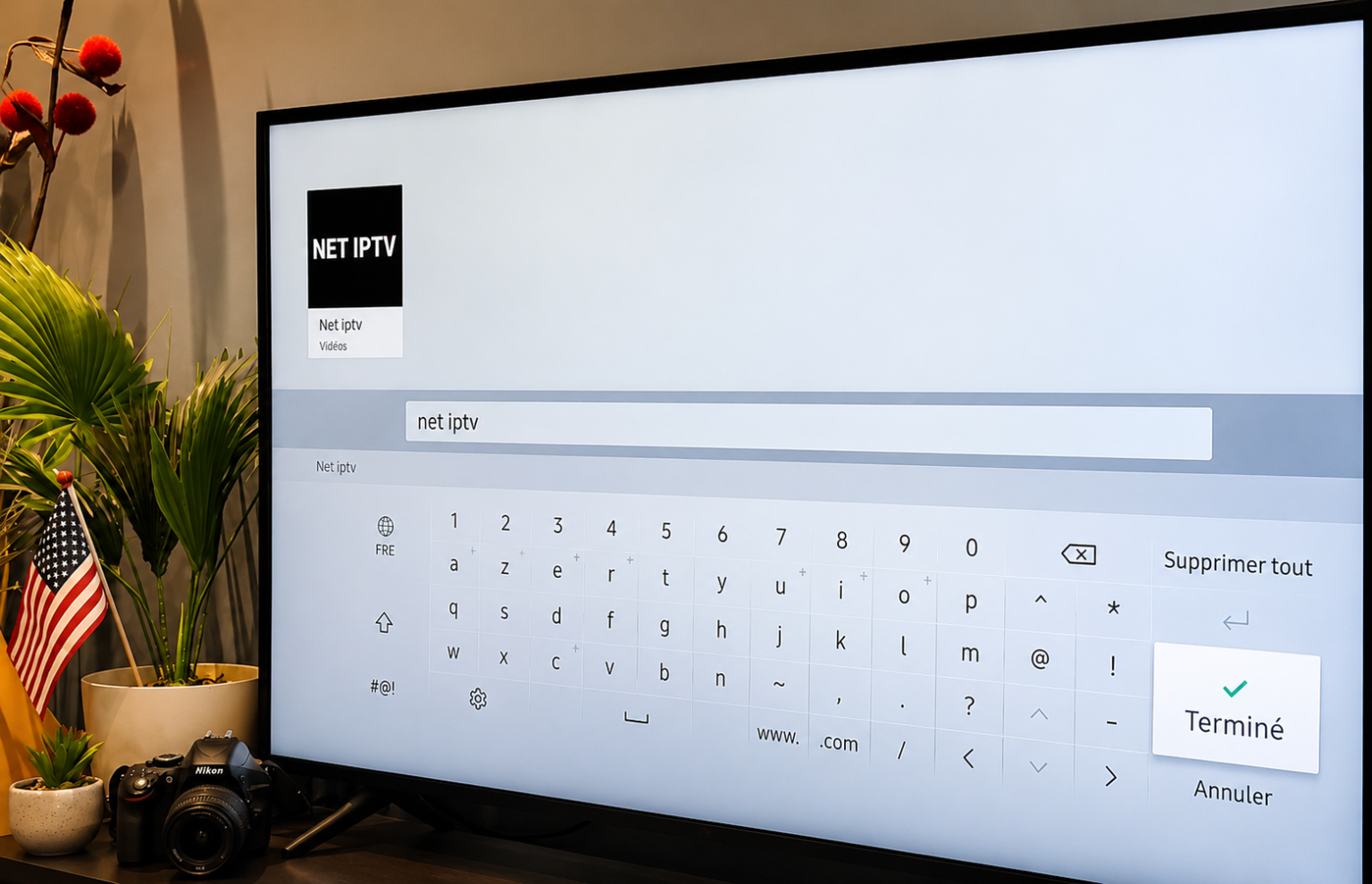
How to Install NET IPTV on Smart TV (Step-by-Step Guide)
Step 1: Check Your Device Compatibility
NET IPTV is compatible with various devices, including:
– Smart TVs (Samsung, LG, Android TV, etc.)
– Android TV boxes
– Computers via a web browser
– Mobile devices (Android/iOS)
Step 2: Download the NET IPTV App
For Smart TV:
– Go to your app store (Samsung Smart Hub, LG Content Store, or Google Play Store).
– Search for “NET IPTV.”
– Download and install the app.
For Android or iOS:
– Go to Google Play Store or the App Store.
– Search for “NET IPTV.”
– Download and install the app.
For Computer:
– Visit the official NET IPTV website in your browser.
Step 3: Activate the App
When you open NET IPTV for the first time, an activation code will appear.
– Visit the official NET IPTV website to activate the app.
– Enter the code displayed on your screen and follow the instructions.
Step 4: Load Your IPTV Playlist
– Obtain an IPTV playlist (in M3U format) from your provider.
– Go to the official NET IPTV Upload website.
– Enter your device’s MAC address (visible in the NET IPTV settings).
– Upload your M3U file or paste the link provided by your provider.
– Confirm and reload your NET IPTV app.
Step 5: Enjoy Your Content
– Open NET IPTV.
– Your channel list or content should now be accessible.
– Browse the categories and start enjoying your channels or VOD.
Additional Tips
– Stable Internet Connection:Make sure you have a fast connection for a smooth experience.
– Preference Settings: Use the settings to organize your channels and create favorites.
– Technical Support: If you encounter any issues, check the FAQ section or contact support on the NET IPTV website.
Once the IPTV Smart TV setup above is done, your playlist and guide refresh on their own, so you only repeat these steps when you add a new subscription.