
How to Install NET IPTV on Formuler Z11 Pro Max (Step-by-Step Guide)
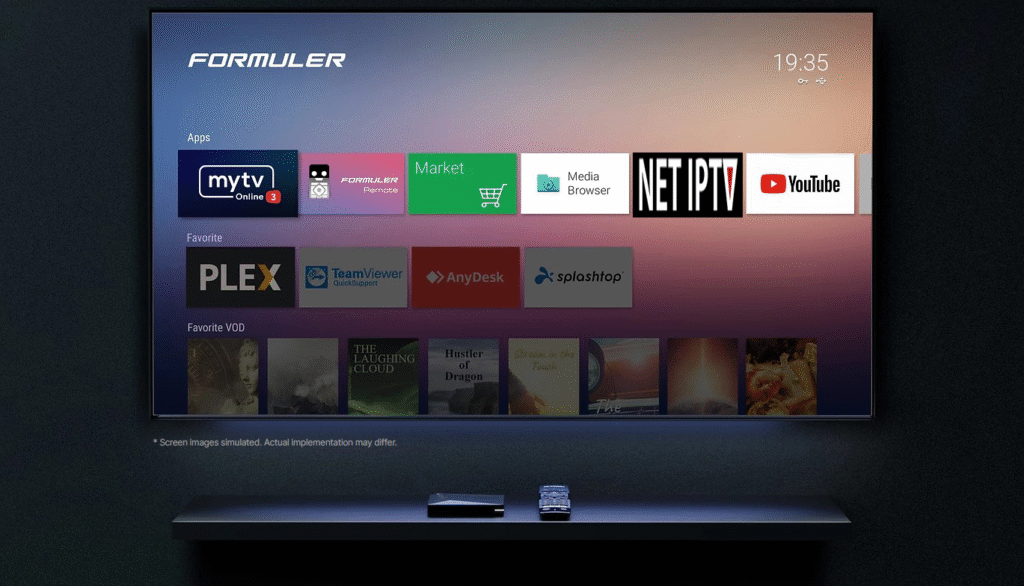
The Formuler Z11 Pro Max is one of the most powerful Android TV boxes for IPTV streaming. Thanks to its strong performance and Android-based system, installing NET IPTV on Formuler Z11 Pro Max is quick and easy. This guide will walk you through the full installation and setup process.
⚠️ Note: NET IPTV is an IPTV player only. It does not provide channels or subscriptions. You must use your own IPTV playlist (M3U).
What You Need Before Installation
Before you begin, make sure you have:
- Formuler Z11 Pro Max connected to the internet
- Google Play Store access
- A valid IPTV M3U playlist URL
- A few minutes to complete setup
Step 1: Open Google Play Store on Formuler Z11 Pro Max
- Turn on your Formuler Z11 Pro Max
- From the home screen, open Google Play Store
- Make sure you are signed in with a Google account
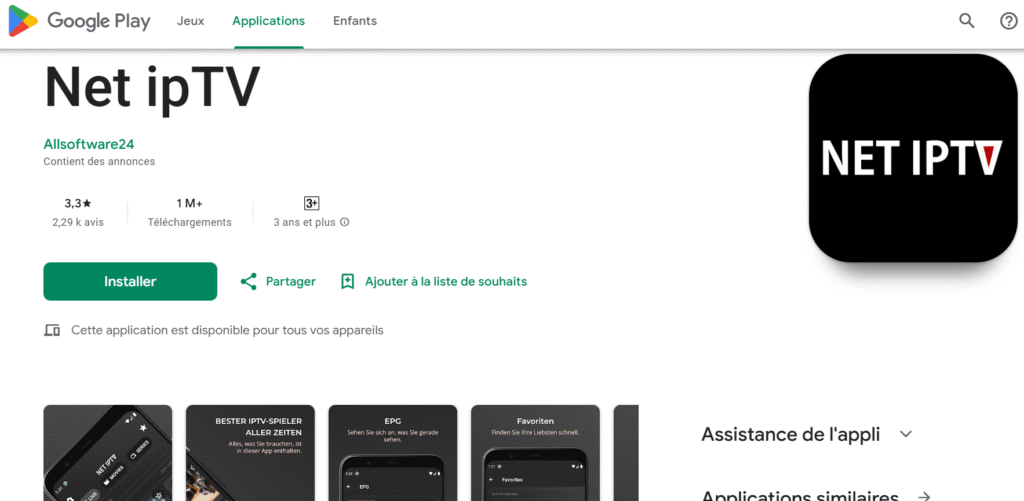
Step 2: Search and Install NET IPTV
- In the Play Store search bar, type NET IPTV
- Select the official NET IPTV app
- Click Install
- Wait for installation to complete
Once installed, open the
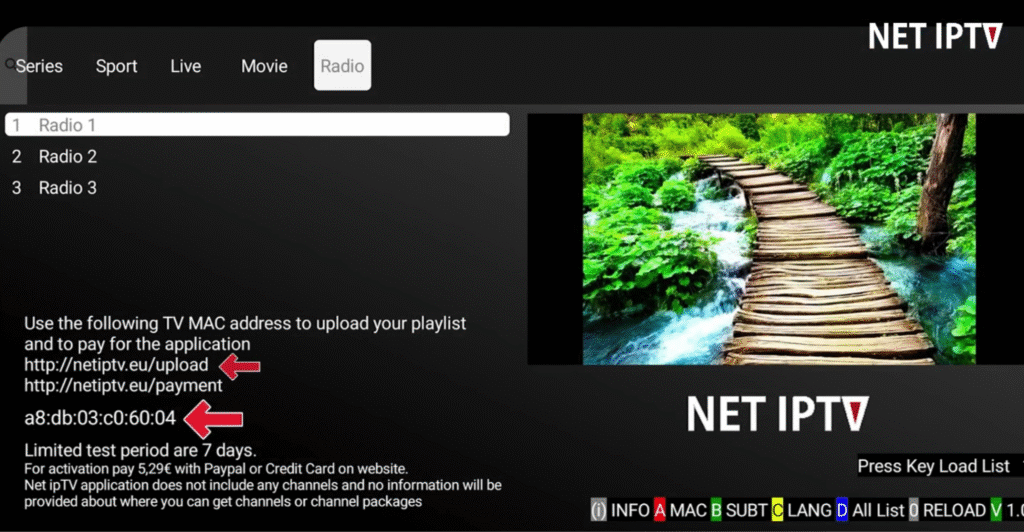
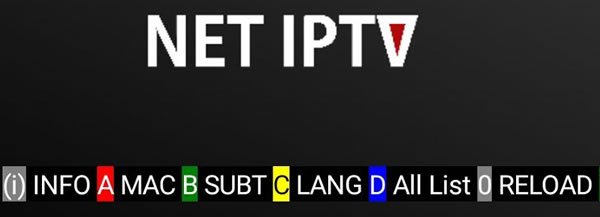
Step 3: Get Your NET IPTV MAC Address
When you open NET IPTV:
- The MAC address will be displayed on the screen
- Write it down or take a clear photo
This MAC address is required to add your IPTV playlist and activate the app.
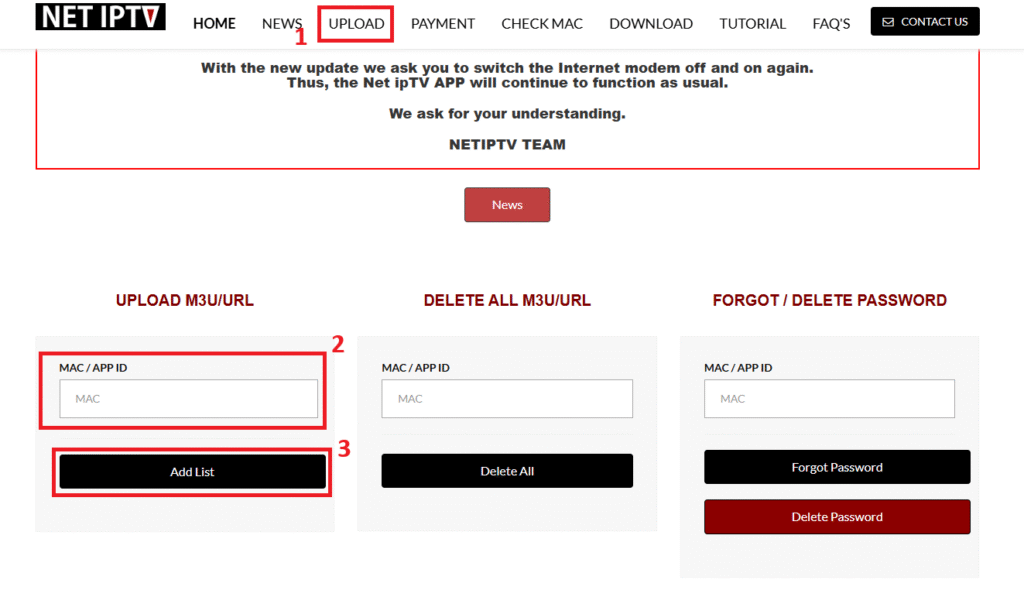
Step 4: Upload IPTV Playlist to NET IPTV
Playlists are added using the official NET IPTV portal.
- Open a browser on your phone or computer
- Visit the official NET IPTV upload portal
- Enter your MAC address
- Paste your M3U playlist URL
- Click Add List / Upload
- Complete the reCAPTCHA verification
Step 5: Activate NET IPTV (One-Time Fee)
NET IPTV requires a one-time activation fee per device.
- On the same portal, go to the Activation section
- Enter your MAC address
- Complete the secure payment process
💡 This is a one-time payment, not a monthly subscription.
Step 6: Restart NET IPTV on Formuler Z11 Pro Max
This step is very important.
- Fully close the NET IPTV app
- Wait 10–15 seconds
- Reopen the app
- Allow 30–60 seconds for channels to load
Your IPTV channels should now appear.
Troubleshooting Tips
If channels do not show:
- Restart the app again
- Double-check MAC address and M3U URL
- Make sure your IPTV subscription is active
- Check your internet connection
Why NET IPTV Works Great on Formuler Z11 Pro Max
- Powerful hardware for smooth playback
- Android TV compatibility
- Handles large IPTV playlists easily
- Fast loading and stable performance
Final Thoughts
Installing NET IPTV on Formuler Z11 Pro Max is simple and beginner-friendly. Once activated and linked to your playlist, you can enjoy a smooth IPTV experience with excellent performance.
You can update or change playlists anytime using the same MAC address through the NET IPTV portal.
Alternative IPTV Players
Net IPTV is a reliable IPTV player, but there are also other IPTV apps you may want to try depending on your device and streaming needs.
- IPTV Smarters Pro – A powerful IPTV streaming app compatible with many devices.
- Bob Player – A lightweight IPTV player that supports easy playlist integration.
- Best IPTV Apps Guides – Find tutorials and guides for the most popular IPTV players.