
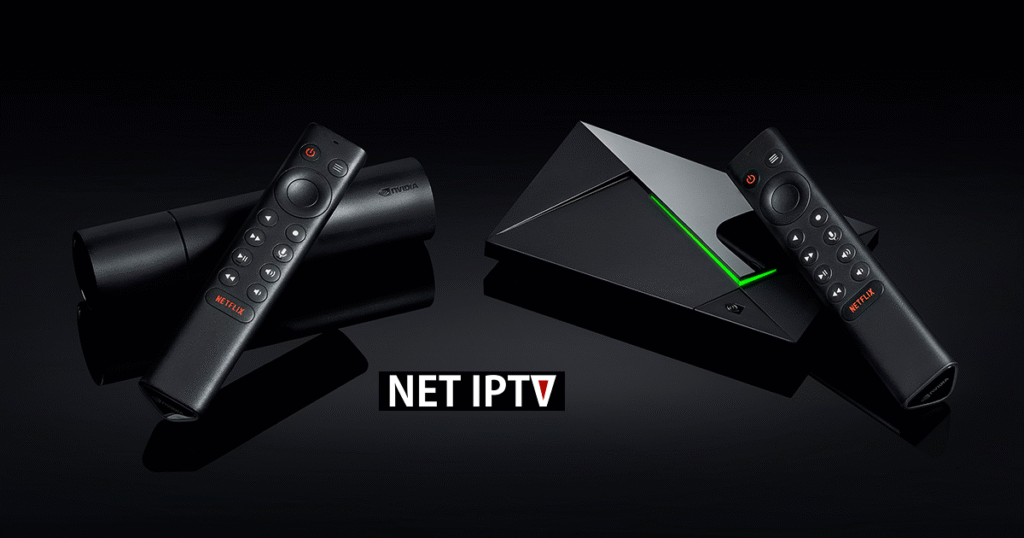
How to Install NET IPTV on NVIDIA Shield (Step-by-Step Guide)
NET IPTV is a popular IPTV player that works smoothly on Android-based devices, including NVIDIA Shield TV. In this guide, you’ll learn exactly how to install NET IPTV on NVIDIA Shield and get it ready to use in just a few minutes.
⚠️ Important: NET IPTV is a media player only. It does not provide channels or subscriptions. You must add your own IPTV playlist.
Requirements Before You Start
Make sure you have:
- NVIDIA Shield TV or Shield TV Pro
- Stable internet connection
- Google Play Store access
- An IPTV playlist (M3U URL) from your provider
Method 1: Install NET IPTV from Google Play Store (Recommended)
Step 1: Open Google Play Store
- Turn on your NVIDIA Shield
- From the home screen, open Google Play Store
Step 2: Search for NET IPTV
- Use the search bar
- Type NET IPTV
- Select the official NET IPTV app from the results
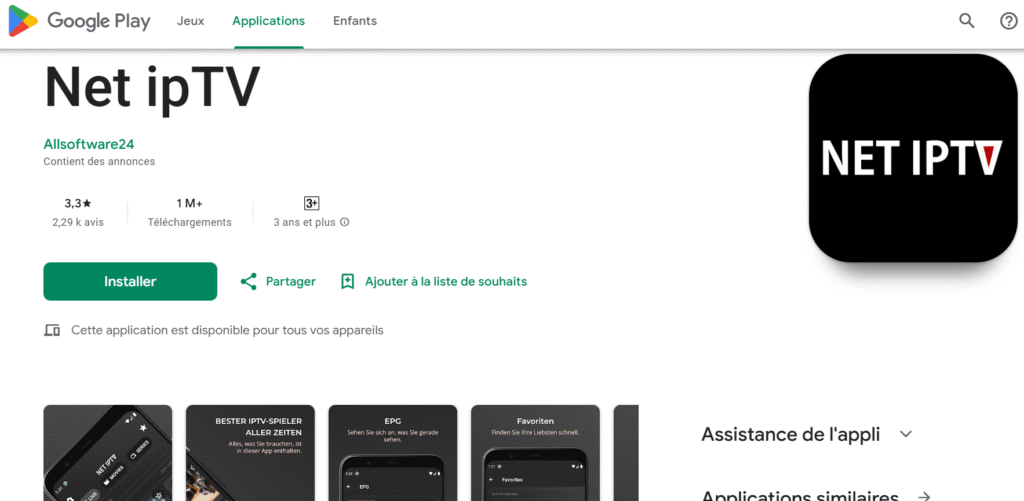
Step 3: Install the App
- Click Install
- Wait for the installation to complete
Once installed, open the app from your apps list.
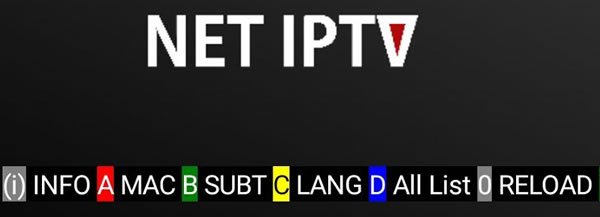
Step 4: Note Your MAC Address
When you open NET IPTV for the first time:
- The MAC address will be displayed on the screen
- Write it down carefully or take a photo
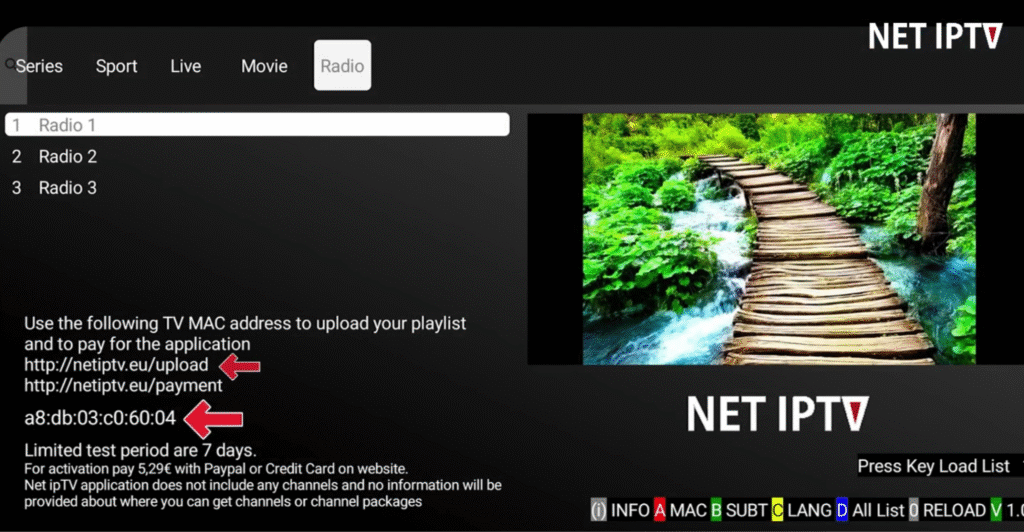
This MAC address is required to add your playlist and activate the app.
Step 5: Add Your IPTV Playlist
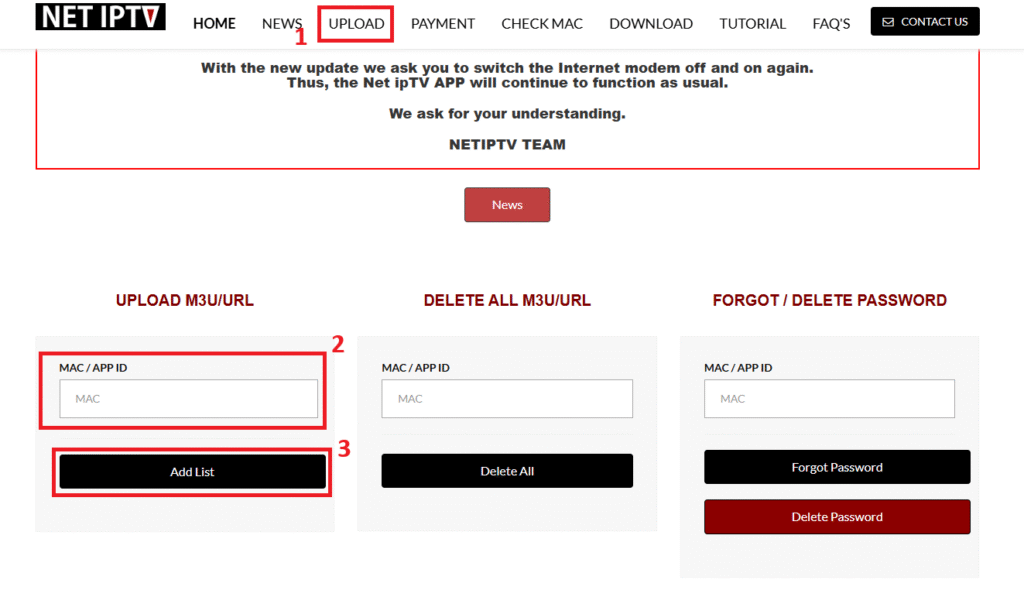
NET IPTV playlists are added through the official web portal.
- Open a browser on your phone or computer
- Visit the official NET IPTV portal
- Enter your MAC address
- Paste your M3U playlist URL
- Click Add Playlist / Upload
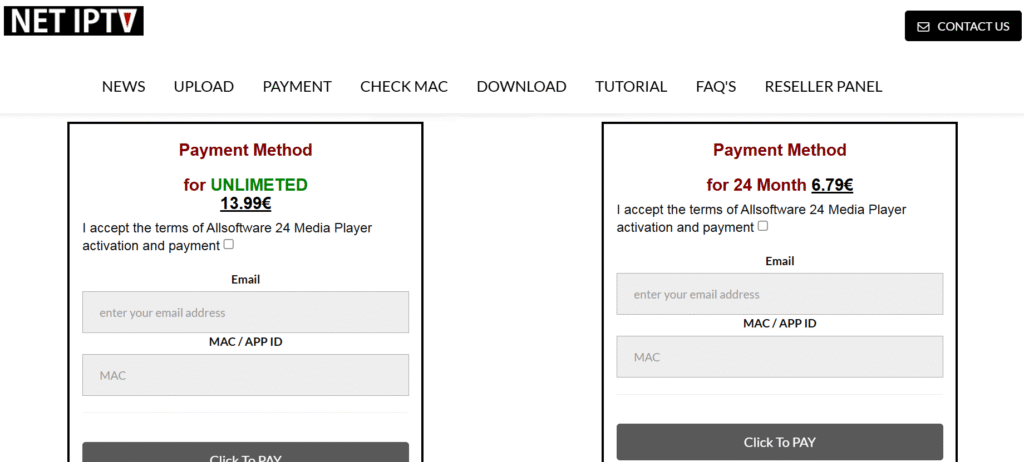
Step 6: Activate NET IPTV
NET IPTV requires a one-time activation fee per device.
- Go to the activation section on the same portal
- Enter your MAC address
- Complete the secure payment
Step 7: Restart NET IPTV on NVIDIA Shield
This step is very important.
- Close the NET IPTV app completely
- Reopen the app
- Wait 30–60 seconds
Your channels should now load automatically.
Troubleshooting Tips
If channels don’t appear:
- Restart the app again
- Double-check your MAC address
- Verify your IPTV subscription is active
- Ensure there are no spaces in the M3U URL
Why Use NET IPTV on NVIDIA Shield?
- Smooth performance on Android TV
- Supports large playlists
- Simple interface
- Fast loading with powerful Shield hardware
Final Words
Installing NET IPTV on NVIDIA Shield is quick and beginner-friendly. Once installed and activated, you can enjoy your IPTV playlists with smooth playback and a clean interface.
If you ever change your playlist, you can update it anytime using the same MAC address on the NET IPTV portal.
Alternative IPTV Players
Net IPTV is a reliable IPTV player, but there are also other IPTV apps you may want to try depending on your device and streaming needs.
- IPTV Smarters Pro – A powerful IPTV streaming app compatible with many devices.
- Bob Player – A lightweight IPTV player that supports easy playlist integration.
- Best IPTV Apps Guides – Find tutorials and guides for the most popular IPTV players.