
How to Install NET IPTV on Windows (PC & Laptop Guide)
NET IPTV is widely used on Smart TVs and Android devices, but many users also want to enjoy IPTV streaming on Windows PCs and laptops. While NET IPTV does not have an official native Windows app, you can still use it on Windows through an Android emulator.
This guide explains how to install and use NET IPTV on Windows step by step.
⚠️ Important: NET IPTV is an IPTV player only. It does not include TV channels or subscriptions. You must add your own IPTV playlist (M3U).
What You Need Before Installation
- Windows 10 or Windows 11 PC
- Stable internet connection
- Android emulator (BlueStacks or similar)
- IPTV M3U playlist URL
Method 1: Install NET IPTV on Windows Using BlueStacks (Recommended)
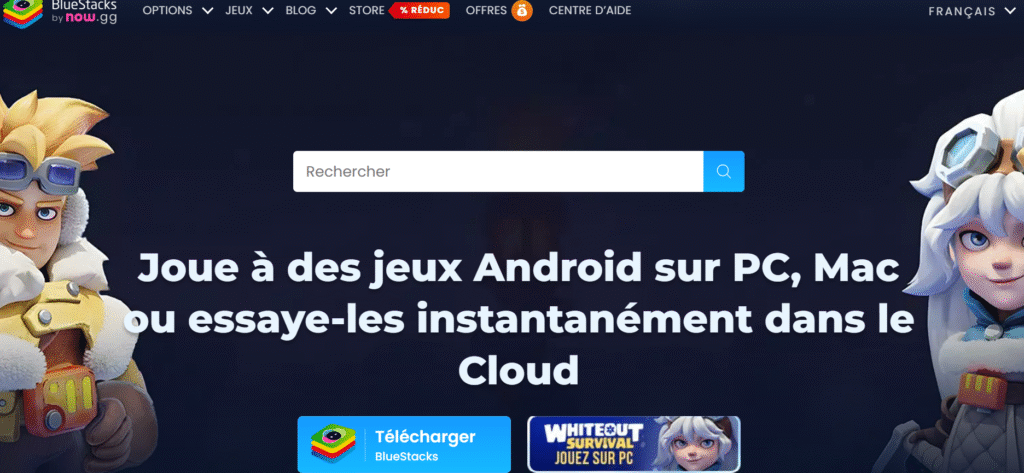
Step 1: Download BlueStacks Emulator
- Open your browser
- Go to the official BlueStacks website
- Download and install the latest version for Windows
Step 2: Install BlueStacks on Your PC
- Run the installer
- Follow the on-screen instructions
- Sign in with your Google account when prompted
Step 3: Open Google Play Store in BlueStacks
- Launch BlueStacks
- Open Google Play Store
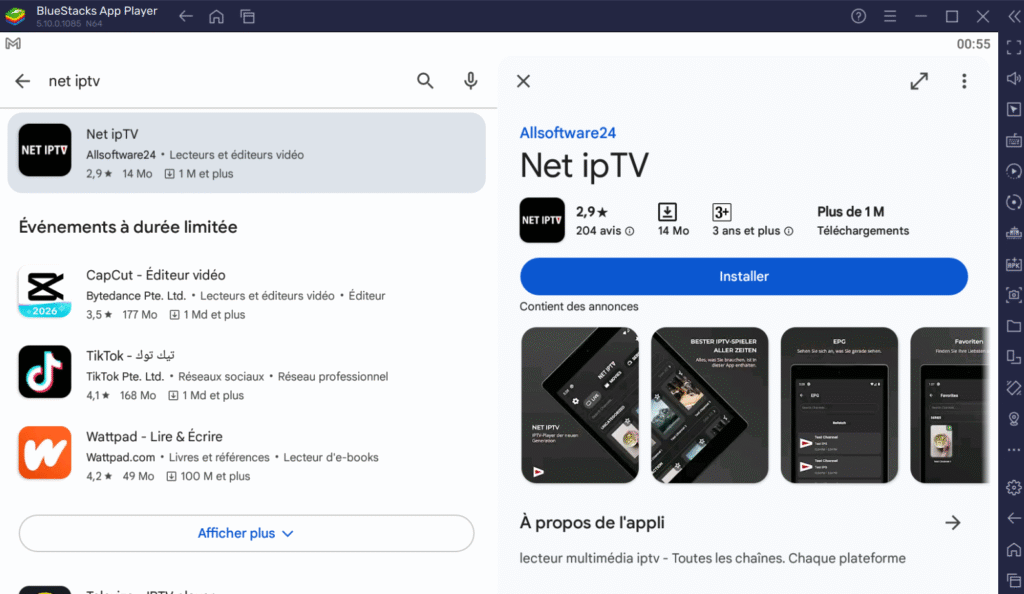
- Search for NET IPTV
Step 4: Install NET IPTV
- Select the official NET IPTV app
- Click Install
- Wait for installation to complete
Once installed, open the app.
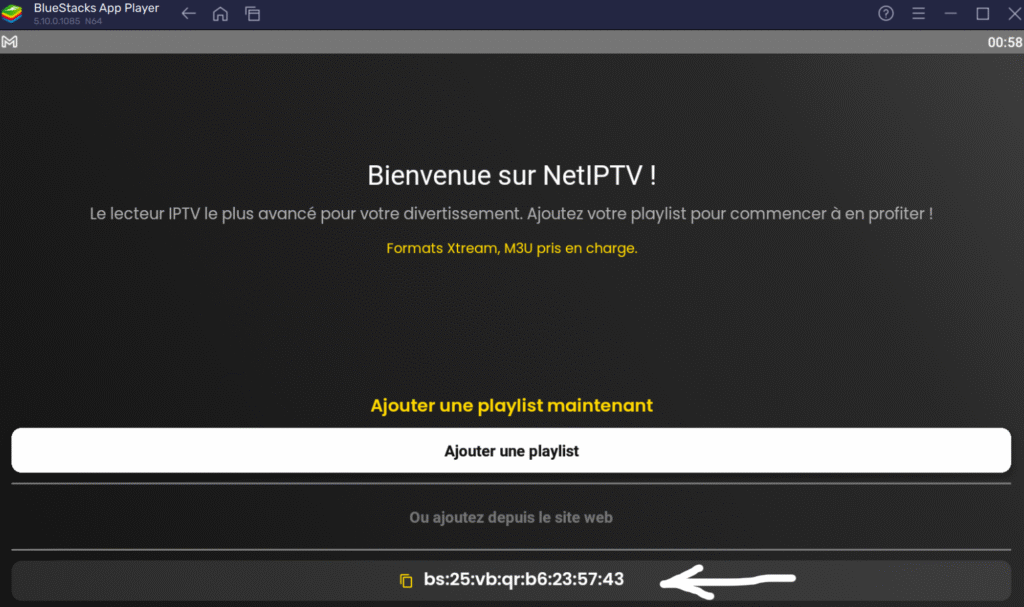
Step 5: Get Your NET IPTV MAC Address
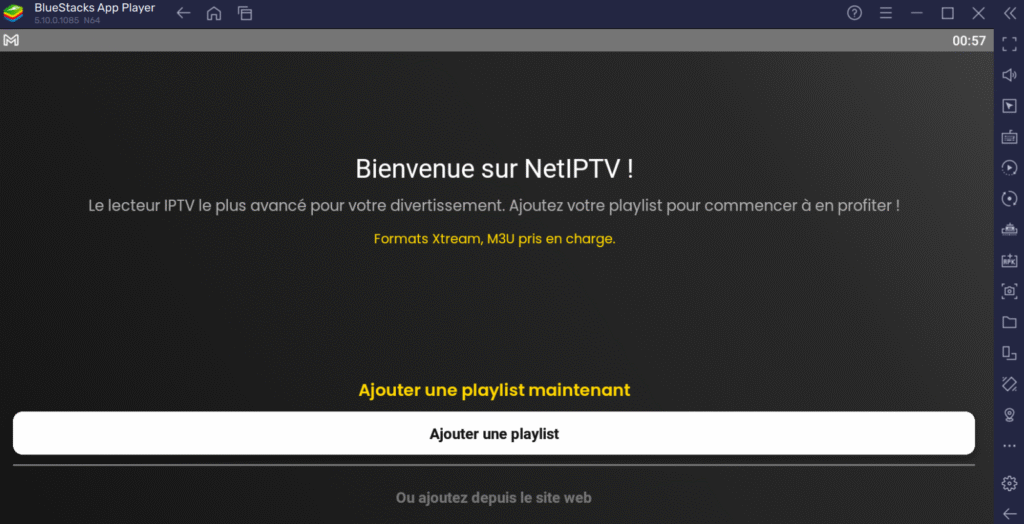
- Open NET IPTV inside BlueStacks
- The MAC address will appear on the screen
- Copy or write it down carefully
Step 6: Add IPTV Playlist to NET IPTV
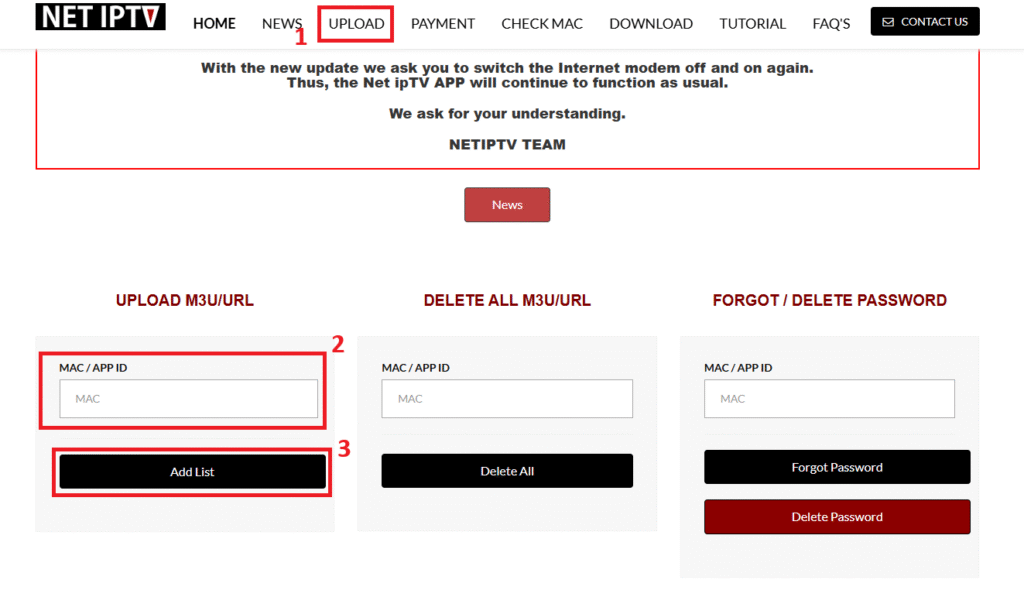
- Open a browser on your PC
- Visit the official NET IPTV portal
- Enter your MAC address
- Paste your M3U playlist URL
- Click Add List / Upload
- Complete the reCAPTCHA
Step 7: Activate NET IPTV (One-Time Fee)
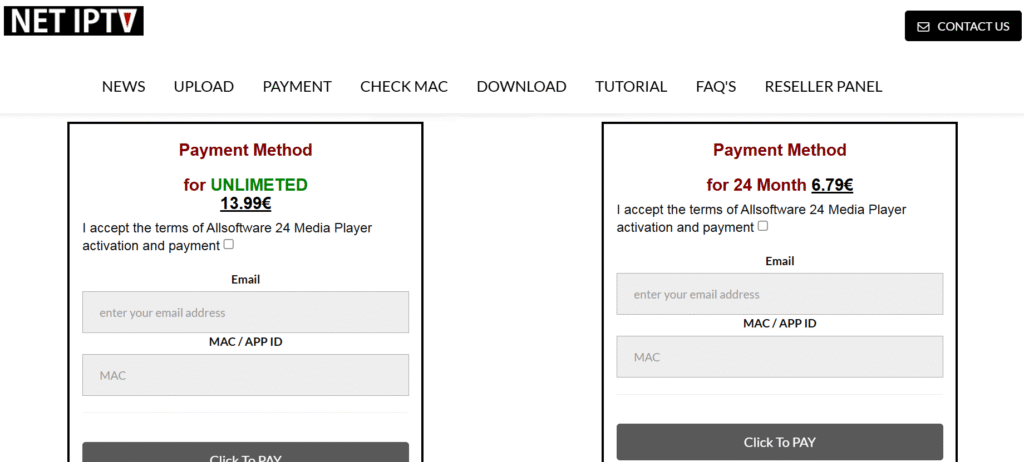
- Go to the Activation section on the same portal
- Enter your MAC address
- Complete the secure one-time payment
Step 8: Restart NET IPTV
- Close NET IPTV completely in BlueStacks
- Reopen the app
- Wait 30–60 seconds for channels to load
Your IPTV channels should now appear.
Alternative Option: Use IPTV Players Built for Windows
If you prefer a native Windows solution, consider:
- VLC Media Player (M3U support)
- IPTV Smarters for Windows
- MyIPTV Player (Microsoft Store)
⚠️ These apps are separate from NET IPTV and do not use MAC-based activation.
Common Issues & Fixes
No channels showing?
- Restart NET IPTV
- Double-check MAC address
- Confirm M3U playlist is active
- Ensure no extra spaces in URL
Final Words
Although NET IPTV does not have a dedicated Windows application, using an Android emulator like BlueStacks allows you to run NET IPTV smoothly on your PC or laptop.
Once activated, you can enjoy your IPTV playlists on a larger screen with full control.
Alternative IPTV Players
Net IPTV is a reliable IPTV player, but there are also other IPTV apps you may want to try depending on your device and streaming needs.
- IPTV Smarters Pro – A powerful IPTV streaming app compatible with many devices.
- Bob Player – A lightweight IPTV player that supports easy playlist integration.
- Best IPTV Apps Guides – Find tutorials and guides for the most popular IPTV players.