
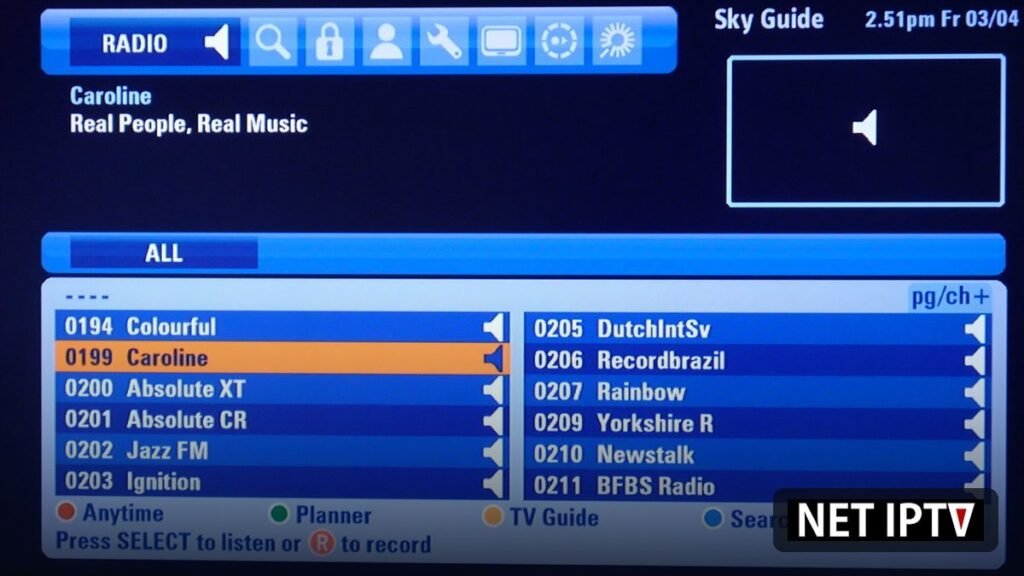
You open the TV guide and every row is empty. Instead of programme names and times you see “No information”, “No EPG found”, or a timeline with nothing in it. The channels themselves play perfectly — so what broke?
This guide explains exactly why NET IPTV EPG data disappears, and walks through a seven-step fix that resolves the overwhelming majority of TV guide problems. It also covers how to point the player at a working EPG source when your playlist simply does not ship one, and the difference between a broken guide and a guide that was never there.
If the channels will not play at all, that is a different problem — start with our buffering and playback troubleshooting first.
What EPG Actually Is (and Why It Breaks So Often)
EPG stands for Electronic Programme Guide — the TV guide. It is not part of the video stream. It is separate data, delivered in XMLTV format, that maps programme entries onto your channels like so:
<programme start="20261009200000 +0000" channel="bbc1.hd">
  <title>Evening News</title>
  <desc>The day's headlines...</desc>
</programme>
Notice the channel="bbc1.hd" attribute. That identifier must match the tvg-id attached to the same channel inside your M3U playlist. When those two strings disagree — even by a hyphen or a capital letter — the guide silently shows nothing for that channel.
That single detail explains most IPTV EPG not working cases: the video plays because the stream URL is correct, and the guide fails because the identifier is not.
Quick Diagnosis: Which EPG Problem Do You Have?
| Symptom | Most likely cause | Go to |
|---|---|---|
| Guide completely empty, all channels | EPG URL wrong, missing, or expired | Fix 1 |
| Guide works for some channels only | Channel ID mismatch | Fix 2 |
| Programme names appear but times are wrong | Time-zone mismatch | Fix 3 |
| Guide loaded once, now frozen days ago | Stale XMLTV data | Fix 4 |
| Guide disappeared after an update | Cache or playlist refresh | Fix 5 |
| Guide works with VPN off, fails with VPN on | EPG server blocked | Fix 6 |
| Only 1–2 days of programmes | Provider limits EPG depth | Fix 7 |
Fix 1 — Verify and Re-Enter the EPG URL
The EPG source address is the first thing to check. It is usually supplied by your playlist provider alongside the M3U link, and it often looks like this:
http://your-provider.com/xmltv.php?username=XXXX&password=YYYY
Common problems with this URL:
- Expired credentials. The
usernameandpasswordare tied to your subscription. If it lapsed, the EPG URL returns an error or an empty document while the stream still works briefly. - Typo in the domain or path.
xmltv.phpbecamexmltv, or a trailing slash was dropped. - Wrong protocol. Some servers respond only to
http://, some only tohttps://. Try both. - Provider changed the endpoint. Servers migrate. Ask your provider for the current EPG URL rather than reusing an old one from last year.
How to test it: paste the EPG URL into a browser on your computer. A working XMLTV endpoint returns a page of XML starting with <?xml and containing <tv>. If you get a login prompt, a 403/404 page, or an empty file, the URL is the problem — not the app.
Fix 2 — Fix the Channel ID Mismatch
If the guide loads for some channels but not others, this is your cause. The tvg-id in your playlist does not match the channel attribute in the XMLTV feed.
Where to look in your playlist file:
#EXTINF:-1 tvg-id="SKYSPORTS1.uk" tvg-logo="..." group-title="Sports",Sky Sports 1
http://server/live/user/pass/1234.ts
The value of tvg-id — here SKYSPORTS1.uk — is what the guide looks up. If the XMLTV feed calls that channel sky.sports.1, you get an empty row for a channel that plays fine.
Your options, best first:
- Ask your provider for a corrected M3U. This is their data problem and the correct fix. Report the specific channels that are blank.
- Use your provider’s own EPG first. Most Xtream-style lines ship an EPG that is already aligned with the playlist’s IDs. Add that before adding any third-party source.
- Edit the playlist manually — only practical for a handful of channels. Correct the
tvg-idvalues to match the XMLTV feed and reload the playlist. - Use an EPG mapper if your player offers one. Some players let you manually assign a channel to an EPG entry from a dropdown, which is faster than editing files.
Fix 3 — Correct the Time Zone
If programme names appear but the times are shifted by one to several hours, the guide data is fine and your time-zone setting is wrong. XMLTV timestamps carry an offset — for example +0000 for UTC — and the player has to convert them to your local time.
Check the following:
- Device time zone. Open your TV, Firestick or box settings and confirm the correct city and automatic time are enabled. A device that has drifted hours out of sync will mis-place every programme.
- Player time-zone option. Some players expose an explicit “time zone” or “EPG offset” setting. Set it to your region rather than relying on automatic detection.
- Daylight saving. Devices configured for a fixed offset instead of a city will be an hour out for half the year. Always select a city, not a raw offset.
Fix 4 — Force an EPG Refresh (and Clear Stale Data)
EPG data is cached. When a cache becomes corrupted or simply stops refreshing, the guide keeps displaying last week’s programmes — or nothing at all.
Do a full refresh, in this order:
- Open the player’s settings and find EPG or TV Guide.
- Choose Clear EPG or Reset guide data.
- Then choose Update EPG or Refresh guide.
- Set the automatic update interval to every 6–12 hours.
- Fully close and reopen the app.
On some players the EPG refresh is bundled with the playlist refresh. Look for Update playlist as well — it re-reads the tvg-id values and can re-link channels that were previously unmatched.
If the app offers a detail-level or “days of EPG” option, start it at the default. Requesting fifteen days from a server that has three can make the sync time out and appear to fail.
Fix 5 — Refresh the Playlist and Clear the App Cache
A stale playlist and a stale cache produce identical symptoms: a guide that worked last month and does not work today.
Android / Firestick: Settings → Applications → NET IPTV → Storage → Clear Cache. Do not use Clear Data unless you are ready to re-enter your playlist credentials.
Samsung / LG Smart TV: force-quit the app (hold the Back or Exit button until it closes — do not just press Home), then reopen it and let the guide sync. If that fails, remove and reinstall the app, then re-activate with your MAC address.
Windows / macOS: quit the app completely, delete its cache folder, and relaunch.
After clearing the cache, always trigger a manual playlist + EPG refresh. The cache is rebuilt from the playlist, so refreshing the playlist first prevents the same empty guide coming back.
Fix 6 — Check VPN and DNS Interference
This one catches a lot of people, because the channels keep working perfectly while only the guide fails.
Some EPG servers are geo-restricted or rate-limited. If you connect a VPN and the guide data stops loading, that is a strong signal:
- Switch VPN server. Choose a location in the same country as the EPG server, not the other side of the world.
- Split tunnelling. Some VPN clients let you route only the video player through the tunnel. If your VPN supports it, add an exception for the EPG domain.
- Change DNS. A resolver that blocks or misroutes the EPG hostname will break the guide while leaving streams untouched. Try Cloudflare (1.1.1.1) or Google (8.8.8.8) at the router or device level.
- Test with the VPN off. If the guide appears instantly, the VPN is your problem, full stop.
Fix 7 — Understand Provider Limits (EPG Depth and Channel Coverage)
Not every problem is a fault. Many playlists deliberately ship a short guide:
- Only 24–48 hours of data. Common on budget plans. Nothing is broken; the provider simply does not publish more.
- Only popular channels covered. Some plans provide EPG for major channels and nothing for niche ones. Blank rows for obscure channels are expected.
- No EPG at all. Some playlists are stream-only. In that case you must add an EPG source yourself — see below.
Ask your provider two direct questions: “How many days of EPG do you provide?” and “Do you supply an XMLTV URL?” If the answer to the second is no, you can still add a public EPG source manually.
How to Add a Custom XMLTV EPG Source
If your playlist ships no guide, or the built-in one is inadequate, most players let you attach an external XMLTV URL. The general procedure:
- Obtain an XMLTV URL. Many providers publish one; large public sources also exist for mainstream channel line-ups.
- Open the player’s EPG settings and choose Add EPG source.
- Paste the URL, give it a name, and save.
- Assign the source to your playlist if the player asks which playlist it belongs to.
- Run a manual refresh, then check a handful of channels.
- If channels remain blank, you are looking at Fix 2 again — the
tvg-idvalues still do not match the new source.
Adding a second EPG source does not break the first. You can run your provider’s guide alongside a public one and let the player fill gaps from whichever matches.
Device-by-Device Notes
NET IPTV on Firestick
Fire OS aggressively suspends background sync, so EPG updates can be cut short. Force a manual refresh and set the interval to 6 hours rather than 24. Allow storage permission for the app — without it the guide cannot be written to disk.
NET IPTV on Samsung and LG Smart TV
Smart TV apps are memory-constrained. A very deep EPG request (15 days across thousands of channels) can exhaust memory and leave the guide blank. Reduce the requested depth and refresh. Also confirm the TV’s clock is automatic — Tizen and webOS will quietly drift if the time server is unreachable.
NET IPTV on Android TV and boxes
The most reliable platform for EPG because the OS permits proper background sync. If the guide fails here, suspect the EPG URL or the channel IDs rather than the device.
NET IPTV on iPhone, iPad, Windows and macOS
EPG behaves consistently, but mobile devices on cellular data may not complete a large sync. Run the first full guide refresh on Wi-Fi.
Preventing EPG Problems Long Term
- Keep the automatic EPG refresh at 6–12 hours.
- Refresh the playlist whenever the guide misbehaves — the two are linked.
- Verify your EPG URL whenever your subscription renews.
- Clear the app cache every few weeks.
- Confirm the device time zone is set to a city, with automatic time enabled.
- Report persistent channel-level blanks to your provider with the channel name and a screenshot.
Frequently Asked Questions
Why is my NET IPTV EPG not working but channels play fine?
Because the guide and the video are separate data. Your stream URLs are correct, so playback works; the EPG URL, the channel identifiers, or the cached guide data is broken. Start with Fix 1 (EPG URL) and Fix 4 (force refresh).
What does “No EPG found” mean in an IPTV player?
It means the player looked for guide data for that playlist and found none — the EPG source is missing, unreachable, or returned an empty document. Add or correct the EPG URL and refresh.
How do I refresh the EPG on NET IPTV?
Open the player’s EPG settings, clear the existing guide data, then select Update EPG or Refresh guide. Follow it with an app restart and set the automatic refresh interval to 6–12 hours.
Why do some channels have a guide and others do not?
Almost always a channel-ID mismatch. The tvg-id in your playlist does not match the channel identifier in the XMLTV feed for those specific channels. Ask your provider to correct the playlist.
Why are my EPG times wrong by one hour?
A time-zone or daylight-saving issue. Set the device’s time zone to a specific city (not a fixed offset) with automatic time enabled, and check for a manual EPG offset option in the player.
Does a VPN break the IPTV EPG?
It can. Geo-restricted or rate-limited EPG servers may refuse requests from the VPN’s IP address, leaving streams working and the guide empty. Try a server in the provider’s country or disable the VPN for the EPG domain.
Can I use a public EPG with NET IPTV?
Yes, if the player supports adding an external XMLTV source. Add the URL under EPG settings, then refresh. Expect to fix some channel-ID mismatches manually.
How many days of EPG should I request?
Match what the server actually publishes — usually 1 to 3 days. Requesting far more than exists can cause the sync to time out and the guide to appear empty.
Final Thoughts
When NET IPTV EPG stops working, resist the urge to reinstall everything. Work in order: confirm the EPG URL is alive in a browser, force a clear-and-refresh in the player, check the device time zone, clear the cache, and rule out VPN or DNS interference. If only specific channels stay blank, it is a channel-ID mismatch and the fix belongs in the playlist data, not the app.
For anything else, the NET IPTV home page links to installation and performance guides for every supported device, and the playlist setup guide covers how your M3U and its EPG source are first loaded.
Disclaimer: NET IPTV is an IPTV player application only. It does not host, stream, distribute or sell television channels, films, series or programme guide data. All EPG and channel data is supplied by third-party playlists configured by the user. Users are solely responsible for ensuring that any playlist or guide source they use is legal in their country.
Pingback: NET IPTV Android TV: Install & Setup Guide 2026